






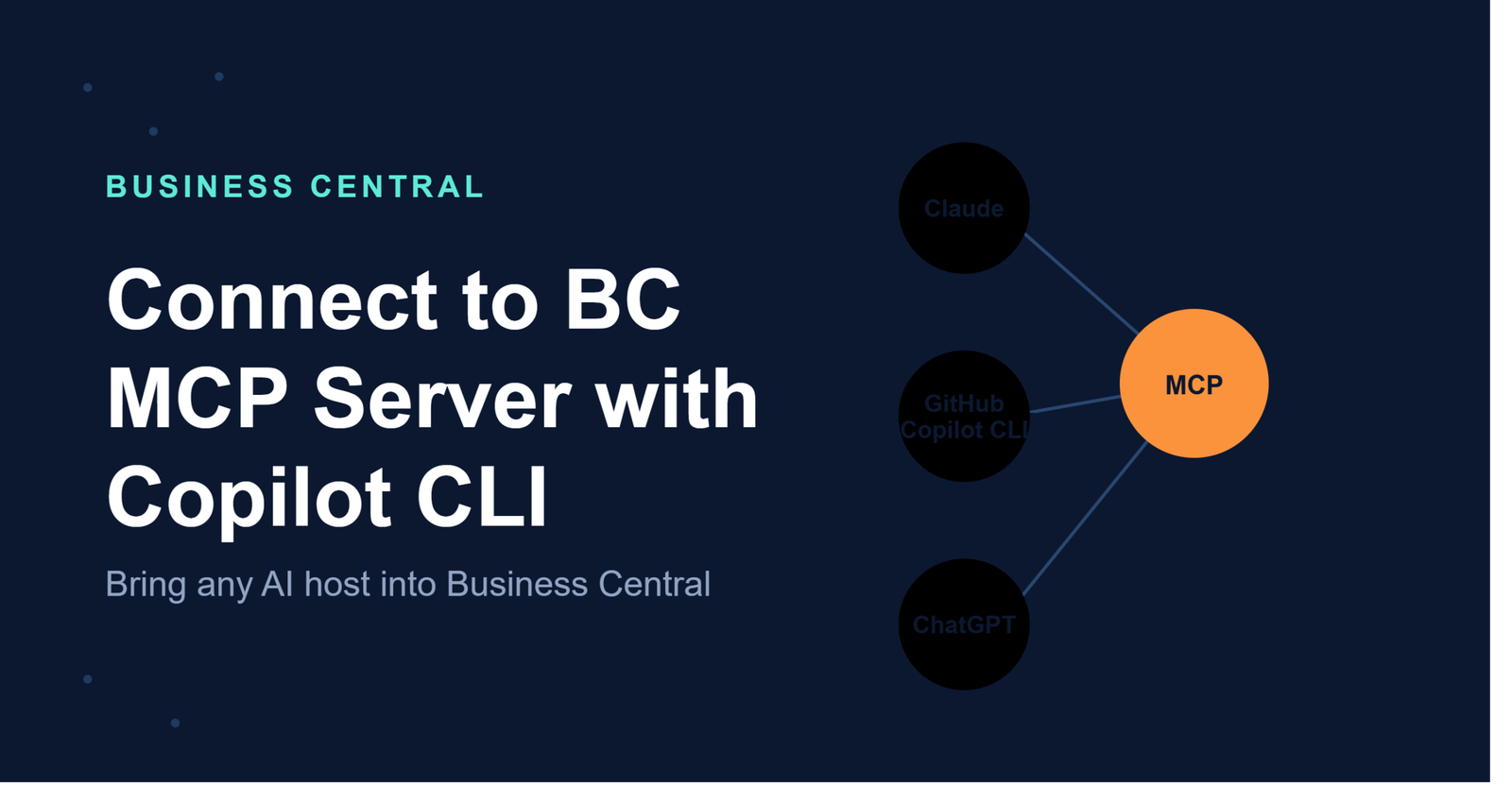
So you’ve got Claude, GitHub Copilot CLI, or ChatGPT, and you want them talking to Business Central like old friends? Good news — it’s entirely possible, but it’s not a one-click affair. Microsoft built a proper bridge for this, and once you understand the pieces, setting it up feels a lot less intimidating than it looks on paper. Let’s walk through exactly how this works, piece by piece.
Why Non-Microsoft MCP Hosts Need Extra Setup
Here’s the thing that trips people up first: not every MCP host has native, built-in support for Business Central. Tools like Claude, ChatGPT, and GitHub Copilot CLI don’t come pre-wired for BC the way some Microsoft-native experiences do. That means you’re connecting them directly to the Business Central MCP server URL yourself, rather than relying on some automatic handshake happening behind the scenes.
Think of it like plugging a universal charger into a device that doesn’t quite speak the same electrical language natively — you need an adapter. In this case, that adapter is an application you register yourself in Microsoft Entra ID, plus some manual configuration on the client side.
What Is the Business Central MCP Server, Really?
Before diving into setup, it helps to understand what’s actually happening under the hood. The Model Context Protocol, or MCP, is essentially a standardized way for AI tools to talk to external systems — in this case, your Business Central environment. The MCP server acts as the translator between what your AI assistant wants to do and what Business Central actually understands.
Microsoft-native tools often get this connection handled automatically. But when you’re using something like Claude Code or GitHub Copilot CLI, that automation isn’t there yet, so you become the one building the bridge.
Who Should Actually Be Doing This Setup?
Quick reality check before you dive in — this isn’t necessarily a task for every end user. You’ll need an account in the Microsoft Entra tenant that hosts your Business Central environment, and at minimum, the Application Developer role. You’ll also need your Microsoft Entra tenant ID handy.
Typically, this app registration step gets handled by a tenant admin, not by whoever just wants to chat with their ERP data. Makes sense, right? You wouldn’t want just anyone spinning up new app registrations in your organization’s identity system. The good news, though — once it’s registered, that same app registration can be reused across multiple different MCP host clients. You don’t need a separate one for every tool.
Step One: Figuring Out Your Redirect URI
Before touching Microsoft Entra ID at all, you need to nail down something called the redirect URI — sometimes called the callback URL. This is essentially where authentication sends the user back to after they log in, and it’s specific to whichever MCP host you’re configuring.
Here’s the catch: this URI isn’t universal. It varies depending on which tool you’re setting up. Most MCP hosts lean on a local HTTP port structured something like http://localhost:<port>/callback.
For example, if you’re working with Claude Code, your redirect URI would look like http://localhost:33418/callback. If you’re setting up GitHub Copilot CLI, it’s structured a bit differently — something like http://localhost:33418 without necessarily needing the /callback suffix. Always double-check your specific MCP host’s documentation here, because getting this wrong is one of the most common stumbling blocks.
One important detail — whatever port number you pick has to match exactly in your MCP host’s connection configuration later. Mismatched ports are a classic “why isn’t this working” moment.
Step Two: Registering Your Application in Microsoft Entra ID
Alright, now for the actual registration process. Why do you even need to do this manually? Great question. The MCP specification technically supports something called Dynamic Client Registration, or DCR, which would normally let clients register themselves automatically with an authorization server. Sounds convenient, right? Unfortunately, Microsoft Entra ID doesn’t support DCR yet, so you’re stuck doing it the old-fashioned way — manually.
Creating the App Registration
Sign into the Microsoft Entra admin center first. From there:
Head to Microsoft Entra ID, then App registrations, then click New registration. Give it a name that actually means something later — something like “BC MCP – Claude” rather than a generic default name you’ll forget in three weeks.
Set the Supported account types field to Multiple Entra ID tenants, and choose Allow all tenants. Then hit Register.
Once that’s done, you’ll land on the app’s Overview page. Copy that Application (client) ID somewhere safe — you’ll need it again shortly, and hunting for it later is annoying.
Adding Your Redirect URI to the Registration
Remember that redirect URI you figured out earlier? Time to plug it in. Go to Authentication, click Add Redirect URI, and select the Mobile and desktop applications platform option. Then enter your MCP host’s specific redirect URI in the field provided.
This step is what tells Microsoft Entra ID “hey, when authentication succeeds, send the user back here.” Skip this and your login flow will just hit a dead end.
Granting API Permissions to Business Central
Permissions are where a lot of the actual power lives. Navigate to API permissions, then Add permission. On the Microsoft APIs tab, look for Dynamics 365 Business Central, and choose Delegated permissions.
You’ll want to check the Financials.ReadWrite.All checkbox specifically, then select Add permissions. After that, don’t forget to click Grant admin consent for your tenant — this step is easy to overlook, but without it, users will hit consent errors every time they try to authenticate.
Optional Record-Keeping Inside Business Central
This part isn’t strictly required, but it’s genuinely useful for your future self. You can record details about the registered app directly inside the Model Context Protocol (MCP) Server Entra Applications page within Business Central itself. It’s purely a convenience step — nothing breaks if you skip it — but it makes life easier when multiple people need to reference the client ID down the road.
Step Three: Connecting Your MCP Host to Business Central
With the app registration sorted, it’s time to actually wire up the client. Your specific MCP host’s documentation will have the exact steps, but a few pieces of information stay consistent no matter which tool you’re using.
The Business Central MCP server URL itself is https://mcp.businesscentral.dynamics.com. That’s your constant. Your Client ID is the Application (client) ID from the app you just registered in Entra.
Understanding the HTTP Headers You’ll Need
Beyond the URL and client ID, there are a handful of HTTP headers that tell the MCP server exactly which environment and company you’re targeting.
TenantId is your Microsoft Entra tenant ID — a GUID that looks something like aaaabbbb-0000-cccc-1111-dddd2222eeee.
EnvironmentName specifies which Business Central environment you’re connecting to, like “Production” or a sandbox name.
Company is the specific company within that environment — something like “CRONUS USA, Inc.”
ConfigurationName is optional, and it lets you specify a particular MCP server configuration within the environment, such as “SalesTeamConfig,” if your organization has set up role-specific configurations.
The Non-ASCII Character Trap Nobody Warns You About
Here’s a detail that genuinely catches people off guard. If your Company or ConfigurationName values contain non-ASCII characters — think accented letters like ø, æ, or å, common in company names from certain regions — you can’t just type them in plainly. You’ll need to Base64-encode those values first.
The format looks like this: =?base64?<encodedvalue>?=. So if your company is “Cronus Århus A/S,” you can’t just paste that string directly into the header. It needs encoding first.
The one exception worth knowing? If you’re working through Copilot Studio specifically, the platform handles this encoding automatically behind the scenes, so you can skip the manual Base64 conversion entirely. Everyone else, though — you’re doing it by hand.
What a Real Configuration Looks Like: Claude Code Example
Seeing this in JSON form usually clears up more confusion than reading about it abstractly. For Claude Code, your configuration would resemble something like this structurally: a businesscentral entry under mcpServers, specifying the type as http, the URL pointing to the Business Central MCP server, headers containing your TenantId, EnvironmentName, Company, and optionally ConfigurationName, followed by an oauth block containing your clientId and callbackPort.
The callbackPort here needs to match whatever port you used when constructing your redirect URI earlier. This is that consistency check coming back around — miss it, and authentication simply won’t complete.
What a Real Configuration Looks Like: GitHub Copilot CLI Example
GitHub Copilot CLI follows a similar overall structure but with a few naming differences. You’ll still have the businesscentral entry with type http and the server URL, plus the same header block with TenantId, EnvironmentName, Company, and ConfigurationName.
Where it diverges slightly is in the OAuth-related fields — instead of a nested oauth object, you’re looking at separate fields like oauthClientId, oauthRedirectPort, and oauthPublicClient set to true. Also worth noting, GitHub Copilot CLI includes a tools array where you can specify which tools are available, often just set to a wildcard to allow everything.
What Happens When You Actually Start the Connection
Once your configuration is saved and you kick off the connection, don’t expect silence. A browser window pops open, prompting you to sign in with your Microsoft account. This is standard OAuth behavior — you’re essentially proving to Microsoft Entra ID that you’re authorized to access this particular Business Central environment, and once that succeeds, the redirect URI sends you back to your MCP host, connection established.
Keeping Track of Your Registered Apps Inside Business Central
Since multiple people in your organization might eventually need this client ID information, Microsoft built in a way to keep it organized directly inside Business Central rather than scattered across sticky notes and Slack messages.
Sign into Business Central, search for the Model Context Protocol (MCP) Server Configurations page, then select Advanced followed by Entra Applications. This opens the Model Context Protocol (MCP) Server Entra Applications page, which essentially acts as a directory listing every app registered in Microsoft Entra for MCP host authentication.
From here, you can simply copy the Client ID whenever someone new needs to configure their tool, or select New to log another registered application if you’re managing multiple client setups across different teams or tools.
Why This Manual Process Actually Makes Sense
I get it — this feels like a lot of steps for something that ideally should be automatic. But there’s a real reason behind it. Enterprise identity systems like Microsoft Entra ID prioritize control and security over convenience, and skipping Dynamic Client Registration support means every connection is deliberate, traceable, and admin-approved rather than something that happens silently in the background.
It’s a bit like getting a building access badge instead of just walking in through an unlocked door. Sure, the badge process takes a few extra minutes, but you know exactly who has access and why.
Common Pitfalls to Watch Out For
A few things consistently trip people up during this process. Mismatched redirect ports between your app registration and your client configuration are probably the most frequent culprit — double-check that number every single time. Forgetting to grant admin consent after adding API permissions is another classic, leading to frustrating consent-loop errors during authentication. And of course, that non-ASCII character encoding issue catches plenty of people who have company names with accented characters and don’t realize plain text won’t cut it.
Final Thoughts
Connecting non-Microsoft MCP hosts like Claude, GitHub Copilot CLI, and ChatGPT to Business Central isn’t complicated once you break it into its actual pieces — determine your redirect URI, register an app in Entra ID, grant the right permissions, and configure your client with the correct headers. It takes a bit more manual effort than tools with native support, sure, but that tradeoff buys you flexibility to use whichever AI assistant fits your workflow best, rather than being locked into a single ecosystem. Once it’s set up correctly, the actual day-to-day experience of querying your Business Central data through these tools feels seamless — all that setup complexity happens once, up front, and then quietly gets out of your way.
Official Microsoft link: Click here
FAQs
1. Do I need admin access to set up this connection myself?
Registering the application in Microsoft Entra ID typically requires at least the Application Developer role, and it’s usually handled by a tenant admin rather than an individual end user.
2. Can I reuse the same app registration for multiple AI tools?
Yes — once you’ve registered an application in Microsoft Entra ID, you can use that same registration across different MCP host clients rather than creating a new one for each tool.
3. What happens if my redirect URI port doesn’t match my configuration?
Authentication will fail or hang, since the callback won’t complete correctly. Always verify the port number matches exactly between your Entra app registration and your MCP host’s connection configuration.
4. Why can’t I just type my company name normally if it has accented characters?
Non-ASCII characters like ø, æ, or å in Company or ConfigurationName values must be Base64-encoded using the format shown in Microsoft’s documentation, otherwise the MCP server won’t parse the header correctly.
5. Does Dynamic Client Registration eliminate the need for manual app registration?
Not currently — while the MCP specification supports DCR, Microsoft Entra ID doesn’t support it yet, so manual app registration remains a required step for connecting non-Microsoft hosts.